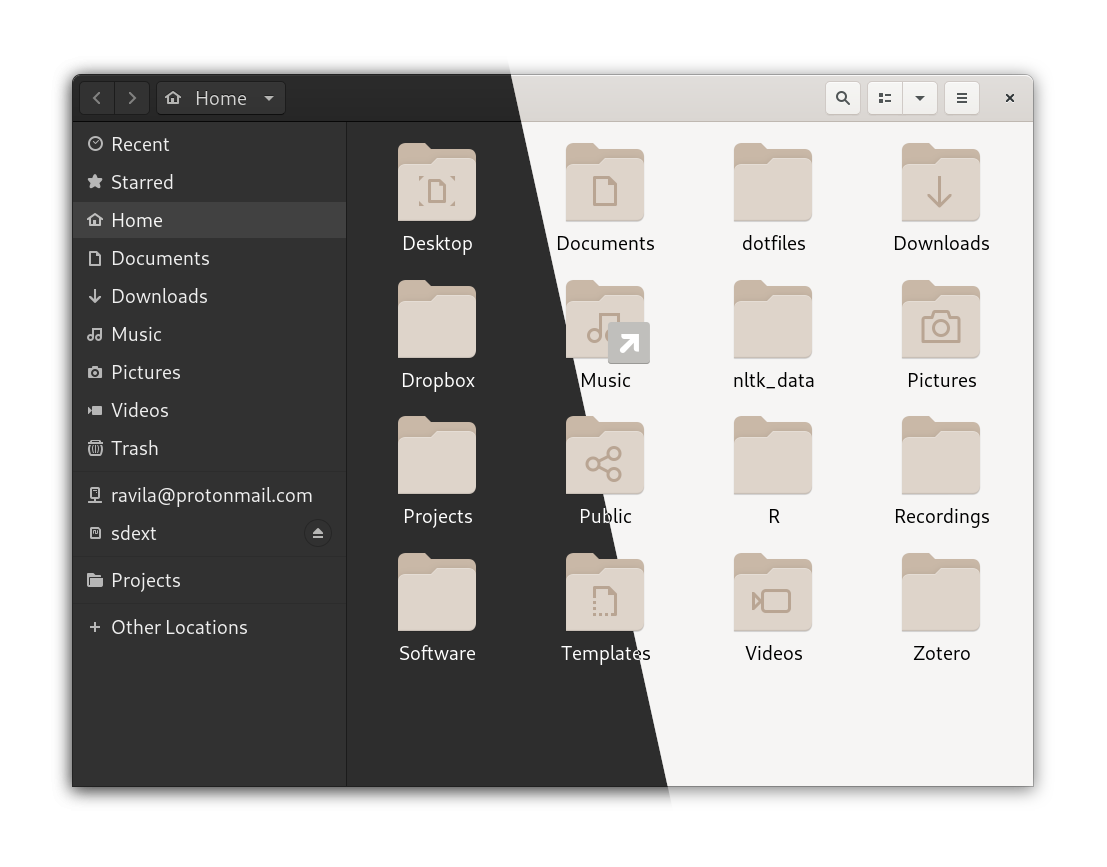
The ability to toggle between light and dark modes is now a standard feature across modern operating systems, from Windows and macOS to iOS and Android. This trend extends to web design, where the prefers-color-scheme CSS media query can be used to adapt websites to users’ theme preferences. Automated transitions between light and dark modes—such as switching to dark mode at sunset—are particularly convenient for improving usability and reducing eye strain.
While Linux desktops, including GNOME, offer extensive theme customization, many lack built-in automation for these transitions. Instead, users often rely on third-party tools or scripts to bridge the gap. 1
Today, GNOME users can easily achieve this with the Night Theme Switcher extension.
In this post, I will show you a simple way to implement theme switching using systemd timers. Beyond theme switching, systemd timers are useful for a wide range of automation tasks in Linux.
Cron Jobs vs Systemd Timers: A Quick Overview
Old time UNIX users will be familiar with cron jobs. Cron is a utility designed to automate tasks by running commands at scheduled times. These commands are typically defined in a file stored under /etc/cronbtab.
An example crontab job
SHELL=/bin/bash
PATH=/sbin:/bin:/usr/sbin:/usr/bin
MAILTO=root

# Example of job definition:
# .---------------- minute (0 - 59)
# |  .------------- hour (0 - 23)
# |  |  .---------- day of month (1 - 31)
# |  |  |  .------- month (1 - 12) OR jan,feb,mar,apr ...
# |  |  |  |  .---- day of week (0 - 6) (Sunday=0 or 7) OR sun,mon,tue,wed,thu,fri,sat
# |  |  |  |  |
# *  *  *  *  * user-name  command to be executed
One of the unique features of cron is its ability to send an email when a job completes (or fails). By default, this email is sent to the MAILTO address specified in the crontab. However, many users forget to configure this setting or check their email notifications.

“Take THAT, piece of 1980s-era infrastructure I’ve inexplicably maintained on my systems for 15 years despite never really learning how it works.”
What is Systemd?
Systemd on the other hand, is a manager for system processes and services. It has replaced much of the functionality that was previously handled by the UNIX init daemon, and has several nice features that the cron utility lacks.
The big benefit for our purpose, is that with cron, if the computer is powered off, a scheduled cron job does not run. Systemd, on the other hand, can run the tasks that it missed the next time that it powers on.
Other advantages of systemd timers:
- CPU and memory limits
- Randomized scheduling
- Jobs can be easily started independently of their timers
- Jobs are logged in systemd journal, which makes for easier debugging
Step 1: Creating Systemd Services
Systemd services have the extension .service. All user-created systemd scripts will be stored in ~/.config/systemd/user/. Here are the contents of our systemd service for switching to the Adwaita-dark GTK theme:
dark-theme.service
[Unit]
Description=Change the GTK theme to dark mode.
After=graphical.target

[Service]
Type=oneshot
ExecStart=/bin/sh -c 'gsettings set org.gnome.desktop.interface gtk-theme Adwaita-dark'

[Install]
WantedBy=default.target
We will need to create a separate systemd service file to switch to a light GTK theme:
light-theme.service
[Unit]
Description=Switch to light GTK theme
After=graphical.target

[Service]
Type=oneshot
ExecStart=/bin/sh -c 'gsettings set org.gnome.desktop.interface gtk-theme Adwaita'

[Install]
WantedBy=default.target
Step 2: Creating Systemd Timers
Now, to create a timer, we make another set of files in the same directory with the same rootname plus the extension .timer. Here are the two files we need to create:
dark-theme.timer
[Unit]
Description=Change the GTK theme daily at a given time.

[Timer]
OnCalendar=*-*-* 16:00:00
Persistent=true

[Install]
WantedBy=timers.target
light-theme.timer
[Unit]
Description=Switch to light theme at 07:00

[Timer]
OnCalendar=*-*-* 07:00:00
Persistent=true

[Install]
WantedBy=timers.target
The OnCalendar setting specifies that this particular timer should run every day at 16:00 hrs. You can also create timers that run every other day, or on specific days of the week. For more on this, you can check out the ArchLinux Wiki.
Step 3: Enabling and Starting the Services
When we are done creating the four configuration files, we need to enable the services. It is recommended that we enable them at the user level (since requiring sudo access would be a hazzle and potential security risk).
Enabling the services:
systemctl --user enable dark-theme.service
systemctl --user enable light-theme.service
systemctl --user enable dark-theme.timer
systemctl --user enable light-theme.timer
Now the operating system will automatically change the GTK theme at the specified times. Furthermore, if we wish to manually change the theme, or test that the service works, we may do so using:
systemctl --user start light-theme.serviceor:
systemctl --user start dark-theme.serviceIf we have any issues, we can check the logs using:
journalctl --user -u dark-theme.serviceSo, what else can we use this for?
A couple other applications come to mind:
- Daily data backups
- Daily data ingestion (web-scraping?)
- Time-based notifications (e.g. set reminders to take breaks, drink water, etc.)
- Scheduled system maintenance tasks
Have you implemented a similar setup or used systemd timers for something creative? Let me know if you have other interesting applications!